Creating and editing rides
Open the ride panel to add a ride, set its type, time, instructor, and horses, add riders, make it repeat, and edit, cancel, or delete it later.
ForAdminsInstructors
On this page
Every ride starts and ends in the same place: a panel that slides in from the right of the schedule. Admins and instructors can open it; riders and helpers can't create or edit rides.
Opening the panel
- Click + Add ride in the schedule toolbar to start a blank ride.
- Or click an empty slot on the week grid — it opens the panel pre-filled with that time and instructor. Clicking the same empty slot again closes the panel without saving.
- Click any existing ride to open its panel instead, for viewing or editing.
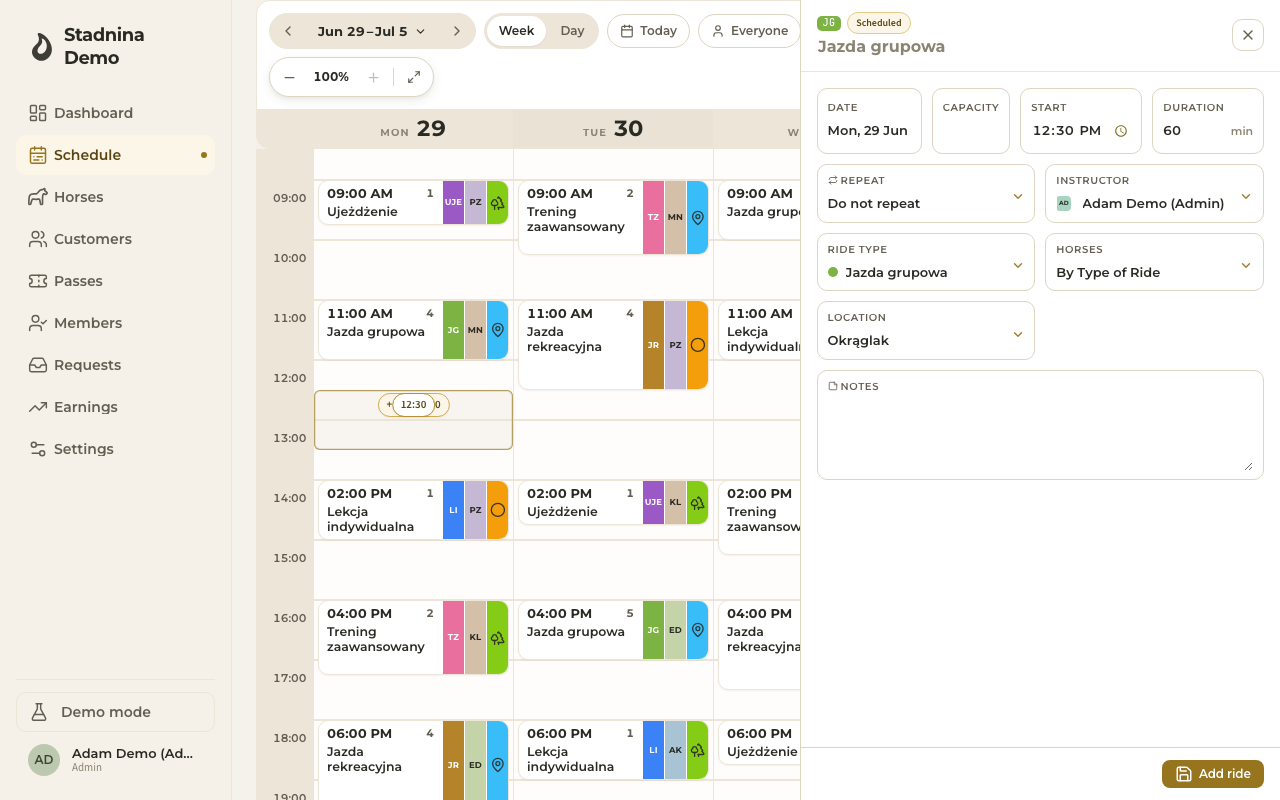
Filling in a new ride
The form on the right lets you set:
- Date — pick from the calendar chip.
- Capacity — how many riders the ride can hold.
- Start and Duration — the end time is worked out for you; changing the ride type also resets the duration to that type's default.
- Instructor — any active admin or instructor in your stable.
- Ride type — only types available on the picked day of the week are offered (a stable can restrict a type to weekdays or weekends only).
- Horses — choose whether the ride draws its horses by ride type, from one or more horse groups, or from all horses. This decides which horses show up for assignment later, in the day view.
- Location — one of your stable's active locations.
- Notes — visible to staff and to the ride's participants.
You can also make the ride repeat — see below. When you're done, click Add ride.
If the time, instructor, or a horse conflicts with something else already scheduled, or the ride falls outside the stable's opening hours or on a normally closed day, you'll see a warning with the option to save anyway.
Making a ride repeat
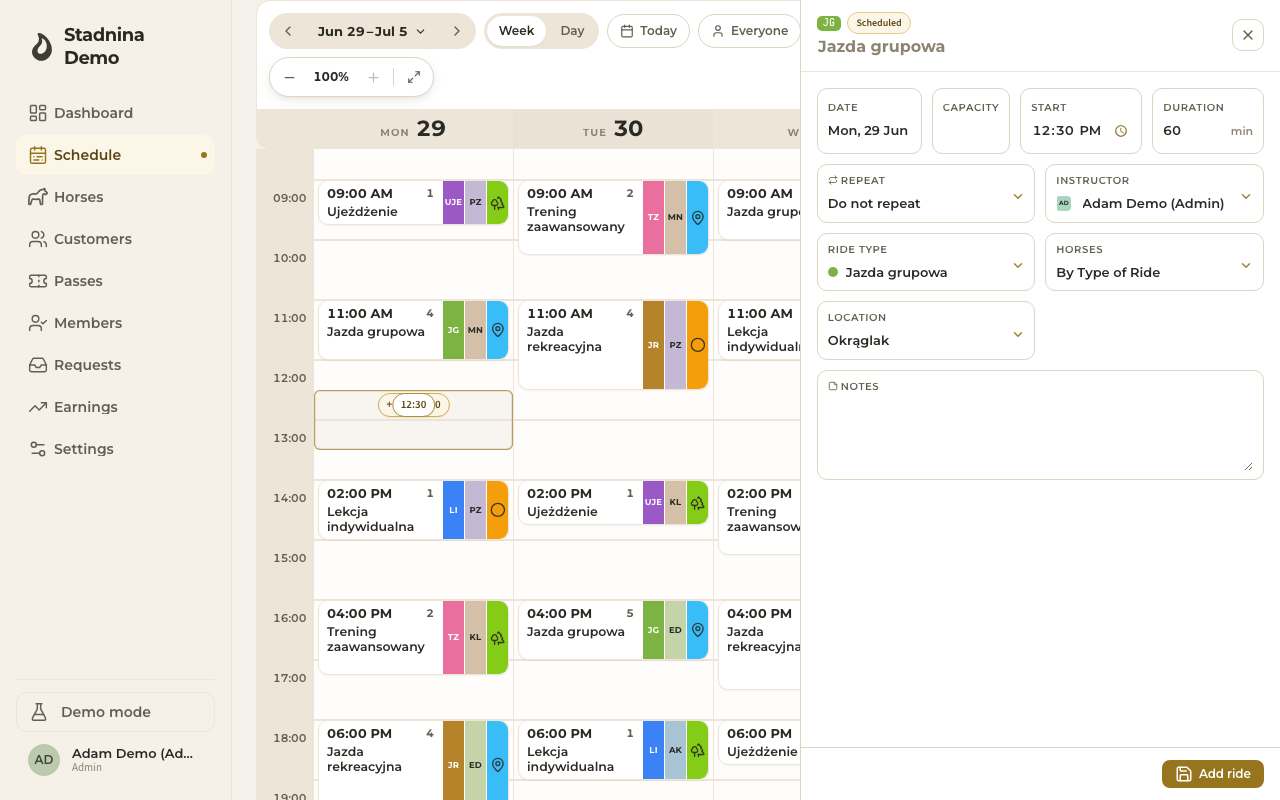
While creating a ride, open the Repeat field to turn it into a series:
- Daily, Weekdays, Weekends, Weekly, or Custom (every N days or weeks).
- Presets that don't fit the picked day are hidden — for example Weekdays disappears if you picked a Saturday.
- The panel shows how many rides the rule will create before you save.
- Occurrences that would fall on a closed day, outside business hours, or into a scheduling conflict are skipped automatically, and you're told how many were skipped and why.
Viewing and editing an existing ride
Click a ride to open its panel. It has up to three tabs:
- Allocate & Settle — pairing riders with horses and taking payment. The panel opens on this tab by default for admins and instructors.
- Details — the ride's date, time, instructor, type, horses, location, and notes. Riders only see this tab, read-only.
- History — a timeline of changes made to the ride.
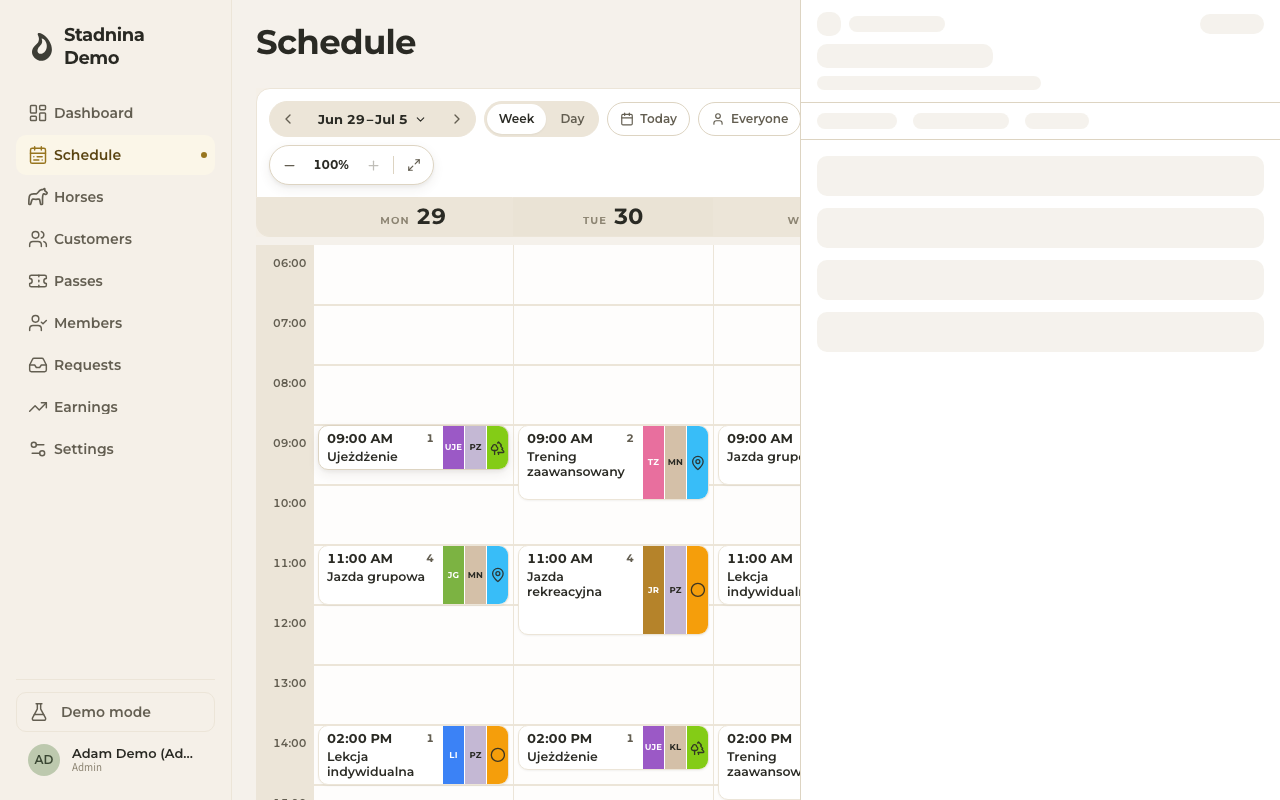
To edit, change any field on the Details tab and click Save changes in the footer. You can also click the ride's title at the top of the panel to rename it — leave it blank to fall back to the ride type's name.
Adding riders and horses
Riders and horse pairing happen on the Allocate & Settle tab:
- + Add rider searches your customers — suggested names (this ride's usual riders) come first, then people who rode recently, then everyone else. You can also add a brand-new customer by typing their name, or add an Anonymous rider for a walk-in you don't want to register yet.
- Click a rider's horse chip to open the horse picker. Horses are grouped as Preferred, Often with [instructor], Available, and Restricted — picking a restricted horse asks for a short reason first.
- Click Unlink pair to remove a horse from a rider without removing the rider.
Making a ride recurring, or changing its recurrence
Editing an existing ride's Details tab also shows the Repeat field:
- On a standalone ride, picking a rule turns it into the first occurrence of a new series once you save — you're asked to confirm, since future occurrences get created from the rule.
- On a ride that's already part of a series, changing the rule replaces the series going forward: future rides with riders are cancelled (so any payments are handled properly), empty future rides are removed, and the series is recreated from the new rule.
- If you only change the date or time of one occurrence in a series, you'll be asked whether that applies to this ride only or to this and future rides.
Duplicating a ride
Click Duplicate in the footer to create a new, separately-scheduled ride with the same instructor, ride type, location, and notes.
Cancelling a ride
Click Cancel in the footer (or, for a series, choose whether to cancel just this occurrence or this and future). You'll see a preview of what happens to each rider's payment — a pass ride is returned, a paid voucher or cash amount is flagged for refund — before you confirm, and you can add an optional reason. Cancelling keeps the ride on record, marked as cancelled; it stays hidden from the main schedule unless you turn on the Cancelled toggle.
Deleting a ride
Only admins can delete a ride, using Delete ride in the footer. Deleting removes it from every view entirely — it's not the same as cancelling. If any rider on the ride has already been settled (paid, owed, or partially paid), deleting is blocked; cancel the ride first so refunds are handled, then delete it.
Good to know
- Any admin or instructor can create, edit, or manage any ride in the stable — not just their own — and every change is recorded in the ride's History tab.
- A ride's title defaults to its ride type's name; give it a custom name any time from the panel header.
- Once a ride starts, riders can no longer request to join it, though staff can still add people from the panel.
- On the Details tab, admins and instructors see full editing controls; helpers see the same tab read-only, with riders and their horses listed but no payment details.
Related
- Week and day views — the grids where you open this panel from.
- Settling a ride — taking payment and marking riders as paid.
- The horse roster — horse status, groups, and availability that drive horse assignment.
- Ride types — set up the types, durations, and default prices offered here.
- Booking rides — how riders request a place, which staff then confirm from this panel.