Visiting a stable
Browse a stable's public schedule and ask to join a ride — no account needed.
ForRiders
If a stable shares its schedule publicly, anyone with the link can see upcoming rides and ask to join one — no account, no sign-in required.
Viewing the schedule
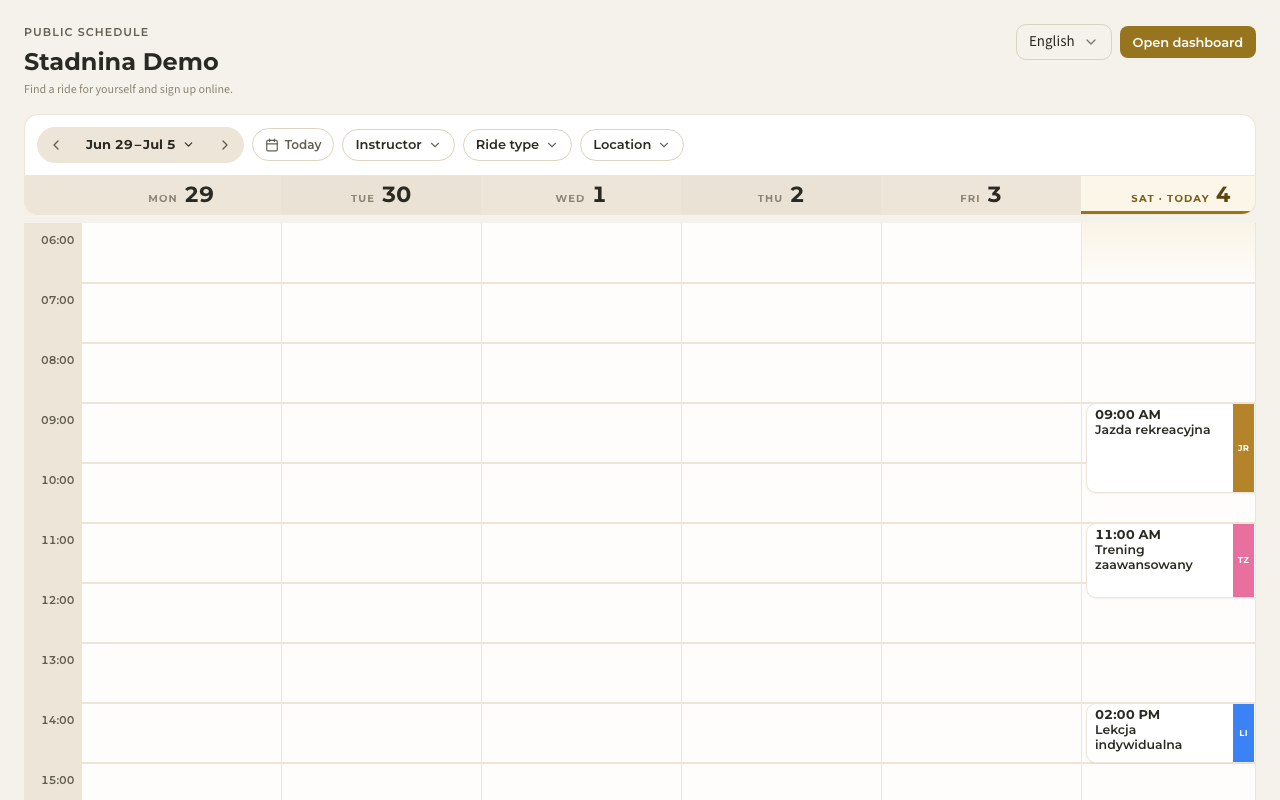
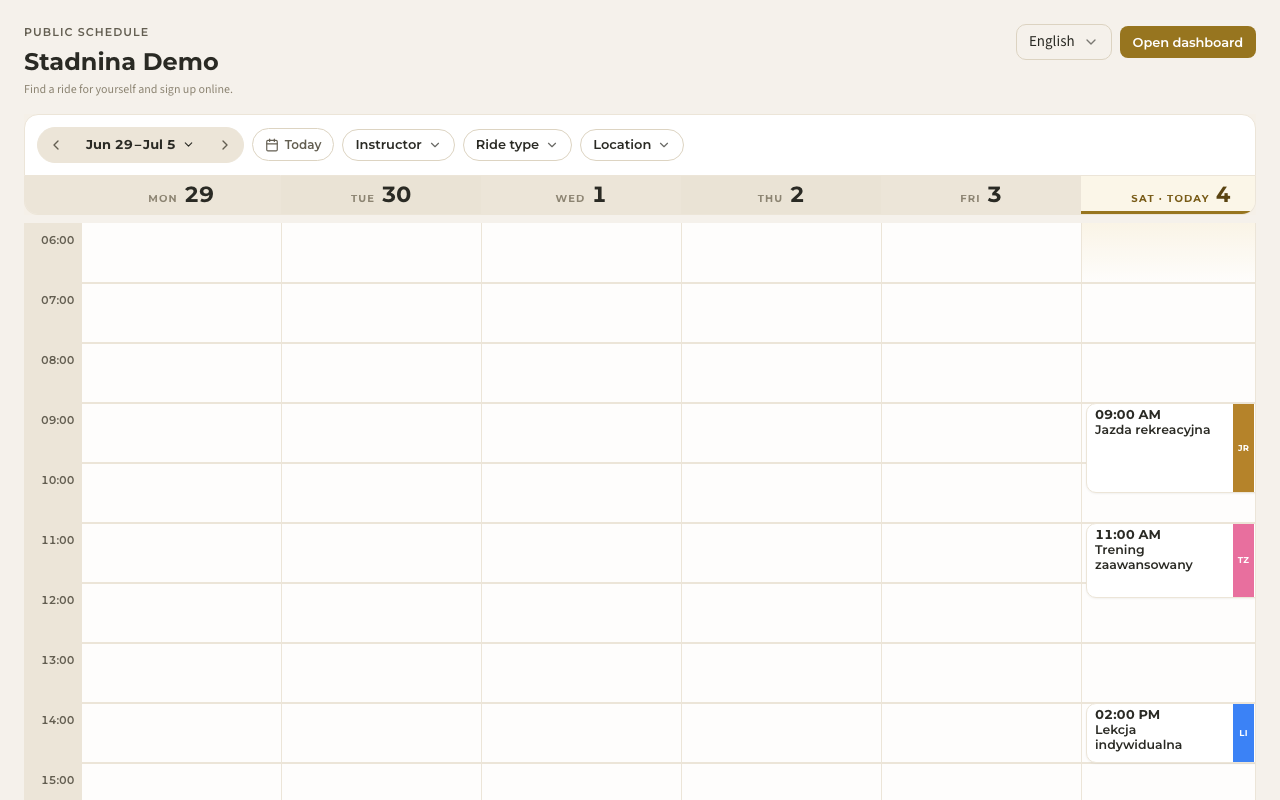
Open the stable's link and you'll land on its Public schedule — the week's rides at a glance. The subtitle sums it up: "Upcoming rides this week."
- Move between weeks and jump to Today using the toolbar.
- Filter the week by instructor, ride type, or location using the dropdowns.
- Each ride shows its time, type, and the instructor's first name — nothing more. Past rides, participant names, and horse assignments aren't shown; this is a read-only, privacy-safe view.
- Some stables ask for a password before showing the schedule at all. If so, you'll see a short entry screen first — the stable will have given you the password.
Asking to join a ride
To request a spot:
- Click any upcoming ride on the schedule. A short form opens: Ask to join this ride.
- Fill in your Full name, Your email, and optionally Phone (optional) and a Message (optional) for the instructor.
- Complete the quick verification check, then select Send request.
What happens next
Your request goes straight to the stable — there's nothing else to click, and you don't need an account to send it.
- The stable reviews your request and confirms or declines it. Keep an eye on your email — they'll be in touch.
- If you didn't already have a Nose account, one is created for you when the stable accepts your request. To use it afterwards, open the sign-in page and sign in with the same email you used here — Nose sends you a link or a one-time code, no password needed.
- If you already have an account, your request is linked to it automatically.
Good to know
- Already have a Nose account? If the stable offers self sign-up, use Sign in / Join in the top corner — it's there when you open the schedule signed out — instead of filling in your details again. More in Signing in & joining a stable.
- If you're signed in already, the join form skips straight to an optional message — your account details are attached automatically, and you can review them later in your account settings.
- Not every stable takes requests this way — if a stable hasn't turned on public sign-up, you won't see the join option, and a member returning to this page instead sees a way back into their own dashboard.
- The public schedule never shows who else is riding, which horses are assigned, or any pricing information — just the times, ride types, and instructor first names.
Related
- Signing in & joining a stable — every way to get an account and become a member.
- Your dashboard — once you're signed in and joined a stable, this is your home screen.
- Week and day views — the full schedule experience once you're a member.
- Welcome to Nose — what Nose is and how it's organized.