Earnings
What each instructor is owed, what's already settled, and how to close out a period.
ForAdminsInstructors
On this page
The Earnings page is where the stable settles up with instructors — what each of them has earned, what's still owed, and a record of everything already paid out. Admins and instructors can open it; an instructor only ever sees their own numbers, while an admin sees everyone's.
How a ride becomes an instructor's earning
A rider's seat has to be fully paid before it counts toward the instructor's pay — in cash, by card, or fully covered by a pass, voucher, or account balance. A seat that's still part-paid or unpaid doesn't credit the instructor yet; it stays unsettled until the payment is complete. Depending on how the instructor is paid, either each fully-paid seat counts on its own, or a ride credits only once every seat on it is paid — a rate paid per lesson, or a guaranteed minimum per ride, needs the whole ride settled first. Selling a pass or a voucher also earns the selling instructor a share, tracked alongside their rides. See Ride checkout for how a seat gets marked paid, and Compensation for how each instructor's rate is set.
The three tabs
- To settle — everything an instructor has earned that hasn't been paid out yet. This is where you settle up.
- Summaries — the same numbers grouped by period (day, week, month, or a custom range), for a bird's-eye view.
- Settled — the closed log of every settlement already confirmed, and the only place to reverse one.
Settling up with an instructor
Only admins can settle a payout — an instructor's own view is read-only; they can look but not confirm. (An admin who also teaches sees the stable-wide, full view.)
- On the To settle tab, pick an instructor from the list on the left. Their rides, pass sales, and voucher sales for the period appear, grouped by day.
- Every item is selected by default. Uncheck anything you don't want to include yet — a whole day, or a single ride, pass sale, or voucher sale.
- The sticky bar at the bottom totals your selection: Payout (what the instructor is owed), Cash to me (net cash they hand back after keeping their payout), and My profit (the stable's take).
- Click Settle [instructor's name], review the confirmation — rides, payout, and profit — and confirm. This freezes a snapshot; it can't be undone from here (only reversed — see below).
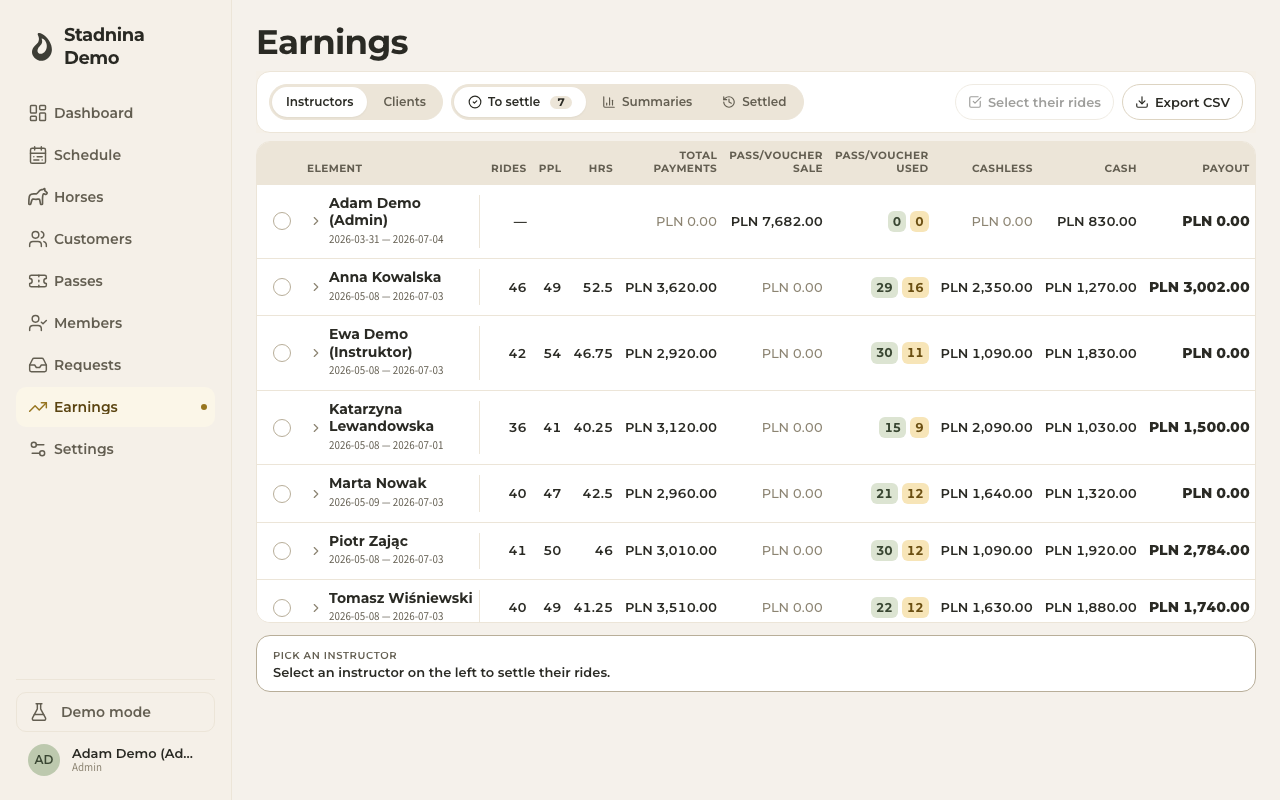
Each row in the table also carries its own numbers: total payments, pass/voucher sales, passes/vouchers used, cashless takings, cash, payout, and the stable's profit on that row. A Custom price or Own horse tag on a ride flags that a non-standard rate applied.
Reading the columns
- Total payments — new money recognised on the ride itself (cash, card, transfer, or a balance draw). It excludes pass/voucher redemptions, since those are already counted as a sale elsewhere.
- Pass/Voucher sale — the price of any pass or voucher this instructor sold in the period.
- Pass/Voucher used — how many riders paid with a pass or a voucher (a count, not money — it doesn't add to the totals here).
- Cashless — payments made by card.
- Cash — payments made in cash, which the instructor is holding until settlement.
- Payout — what the instructor is owed for this row.
- My profit — total payments plus pass/voucher sales, minus payout: what the stable nets.
An instructor's own view shows a simpler set of columns, without prices — just rides, riders, hours, Cash to stable, and Payout — since discussing another instructor's rate isn't their business.
Cash to stable, and when the stable owes you
At settlement, the instructor doesn't hand back every złoty of cash they collected — they keep their own payout out of it first. Cash to stable is the remainder: cash collected minus payout. If an instructor's payout is larger than the cash they took in (for example, most of their rides were paid by card or pass), that number goes negative — the stable owes the instructor the difference instead, rather than the other way round.
The Settled tab, and reversing a settlement
Every confirmed settlement appears in the Settled log: the period it covers, when it was settled, who settled it, and the frozen payout and cash figures.
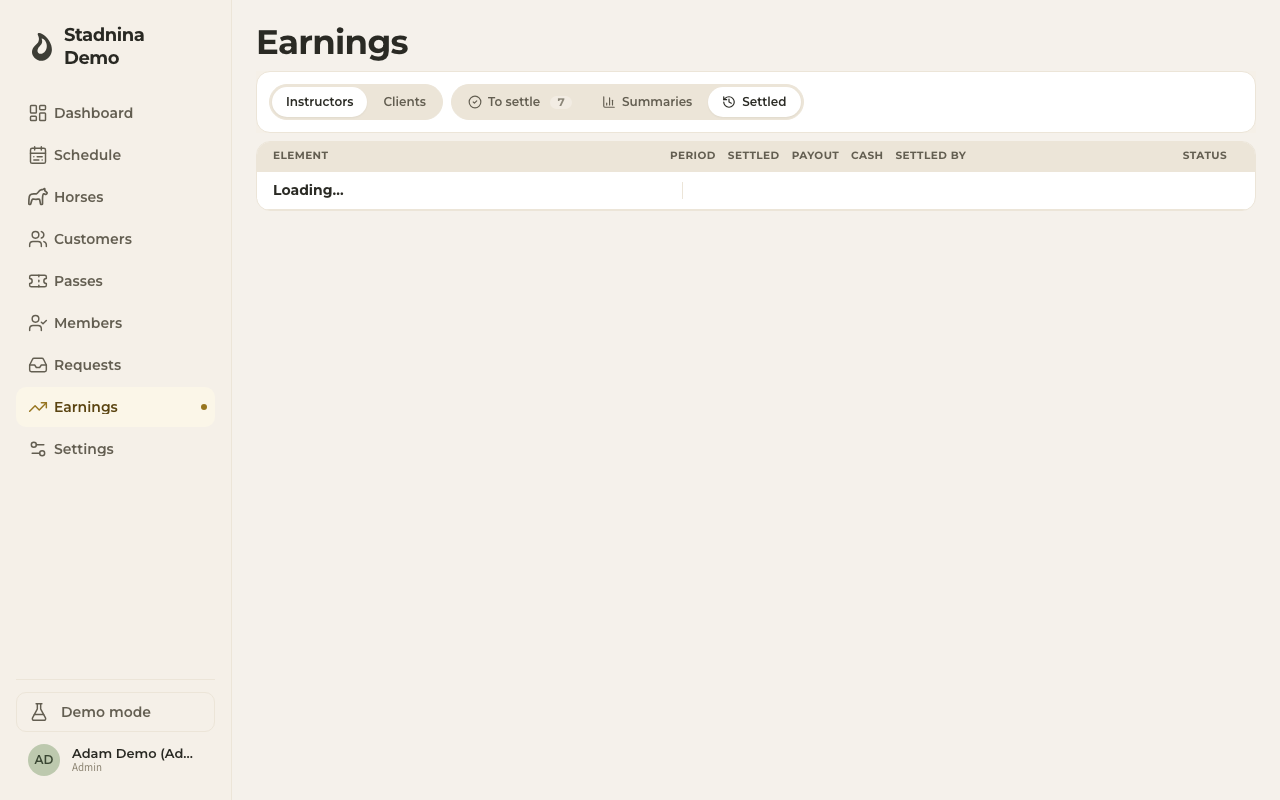
If a settlement was confirmed by mistake, an admin can click Reverse on it, optionally note why, and confirm. Reversing sends its rides, sales, and balance collections back to To settle so they can be corrected and settled again — the original entry stays in the log, marked Reversed, as an audit trail. Reversing is admin-only and cannot be undone.
Good to know
- A rate change during the period is flagged with a note — rides before the change use the previous rate, rides after use the new one.
- You can export the current view (the settle board, a summary, or a horse breakdown) as a CSV file.
- Clicking a ride, pass sale, or voucher sale row opens its full detail alongside the board, so you can check what happened without leaving the page.
- Horses is its own view, picked at the top of the page next to Instructors: the same period regrouped by horse — rides, hours, revenue, and how each horse's workload compares to its weekly target. It shows Summaries only, since a horse has nothing to settle.
Related
- Ride checkout — how a rider's seat gets marked paid, which is what makes a ride settle-able.
- Compensation — how each instructor's rate is configured.
- Passes and Vouchers — how a sale is recorded before it reaches this page.