Horse groups
Group horses — sport horses, children's horses, and so on — to filter the roster and steer each ride to the right ones. Managed on the Horses page.
ForAdmins
On this page
Horse groups let you organise your horses — for example sport horses or children's horses — so you can filter the roster and restrict rides to the right ones. You manage groups right on the Horses page, in its spreadsheet editor. This is an admin task.
Where to manage groups
Open Horses, then click Edit in the top-right corner to open the spreadsheet editor (admins only). Each group is a column under the Groups heading, and every horse is a row. From here you add, rename, recolour and reorder groups, and tick which horses belong to each.
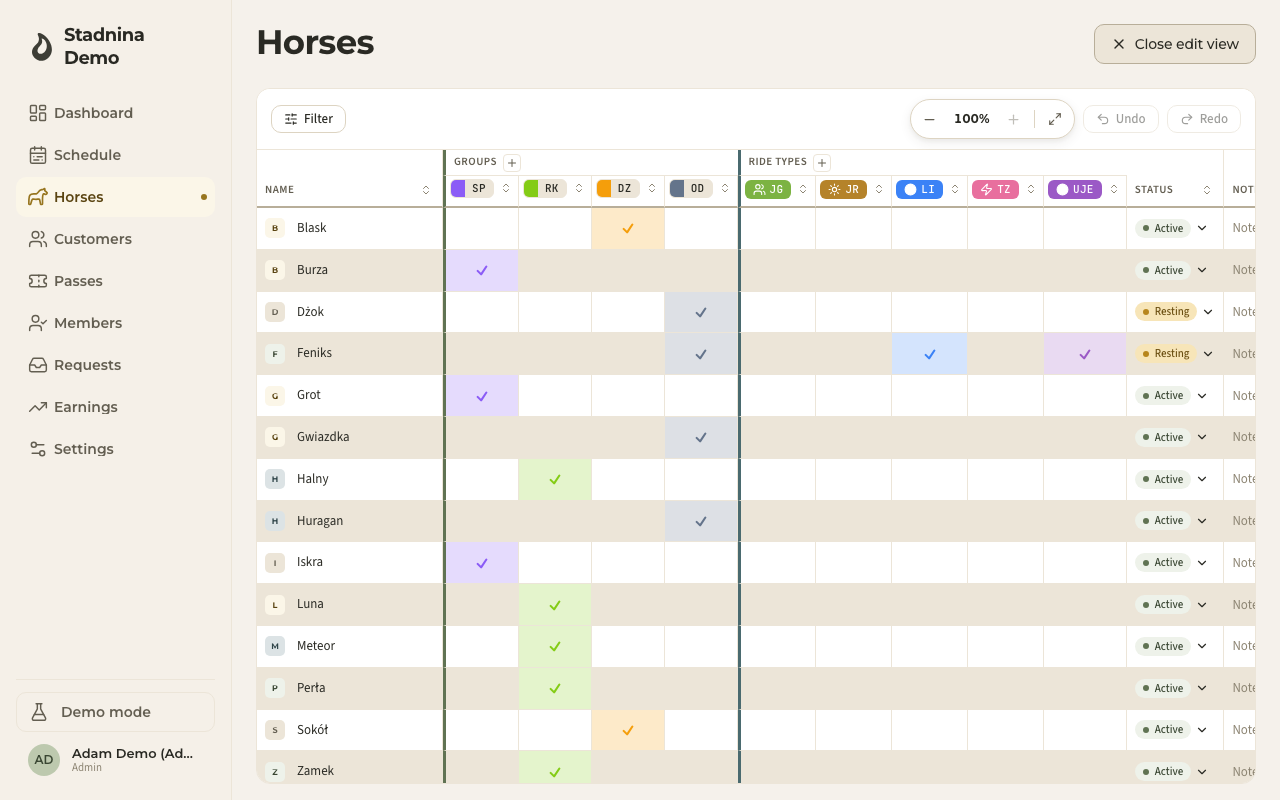
Adding a group
- In the spreadsheet editor, click the + on the Groups heading.
- Enter a Name (for example "School horses") and, optionally, a Short label (up to 4 characters, shown in dense views).
- Pick a Color and an Icon.
- Optionally turn on Default group or Hide from default picker (see below).
- Click Save. A new column appears for the group.
Assigning horses to groups
There are three ways to put horses in a group:
- Tick a cell — in the spreadsheet editor, tick the cell where a horse's row meets a group's column to add it, untick to remove it. Changes save immediately, with no separate save step.
- Drag or select a whole column — click and drag down a group's column to add several horses in one stroke, or click the column's header to select it and press Space to add or remove every horse currently shown.
- From one horse — open a horse from the roster, go to its Settings tab, and use the Groups chips to add or remove it. See The horse roster.
A horse can belong to several groups at once.
Setting a default group
Turn on Default group in a group's settings to make newly created horses join it automatically. Only one group per stable can be the default at a time.
Hiding a group from ride creation
Turn on Hide from default picker to keep a group's horses out of the default horse list when you create a ride. They're still findable by typing the horse's name or picking this group directly in the form — this just keeps rarely-used horses out of the way day to day.
Editing or reordering a group
- Edit — click a group's chip at the top of its column to reopen its settings and change the name, short label, color, icon, or the default/hidden toggles.
- Reorder — drag a group's column left or right to change the order groups appear in, including in the ride-form filters.
Good to know
- You manage groups on the Horses page — there isn't a separate settings page for them.
- Groups also drive the roster's Group filter and the horse picker you see when creating a ride.
- A group's column header shows its colour and short label, so you can scan the sheet quickly.
Related
- The horse roster — where a horse's group memberships also appear, on its Settings tab.
- Creating rides — where horse groups filter which horses you can pick.