Week and day views
The staff schedule — the week grid and the day matrix, how to move between them, filter, zoom, and reveal cancelled rides.
ForAdminsInstructorsHelpers
On this page
The Schedule is where you plan and run your stable's rides. Admins, instructors, and helpers all have it as their main screen — helpers land on the day view by default, everyone else opens on the week view. Riders see a different, booking-focused version of the schedule; this page covers the staff view. If you're looking for how riders book and cancel rides, see Booking rides.
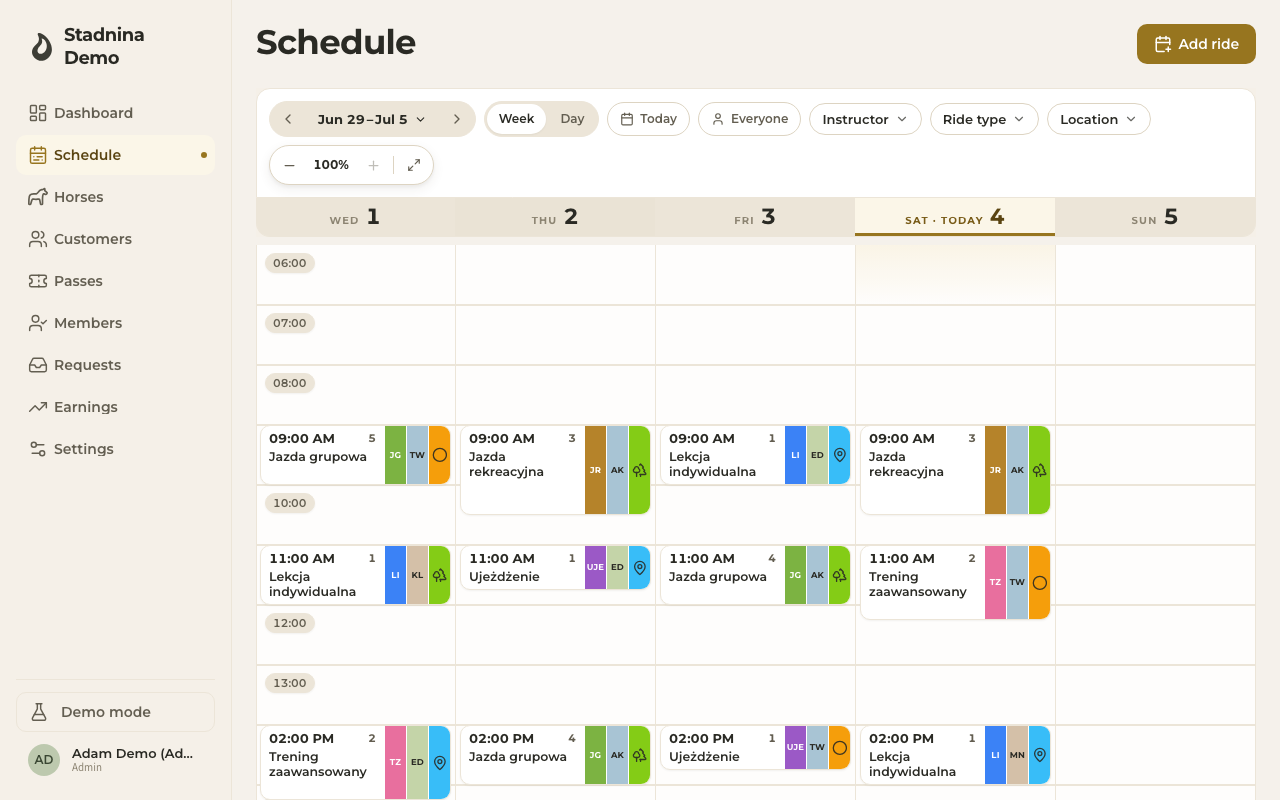
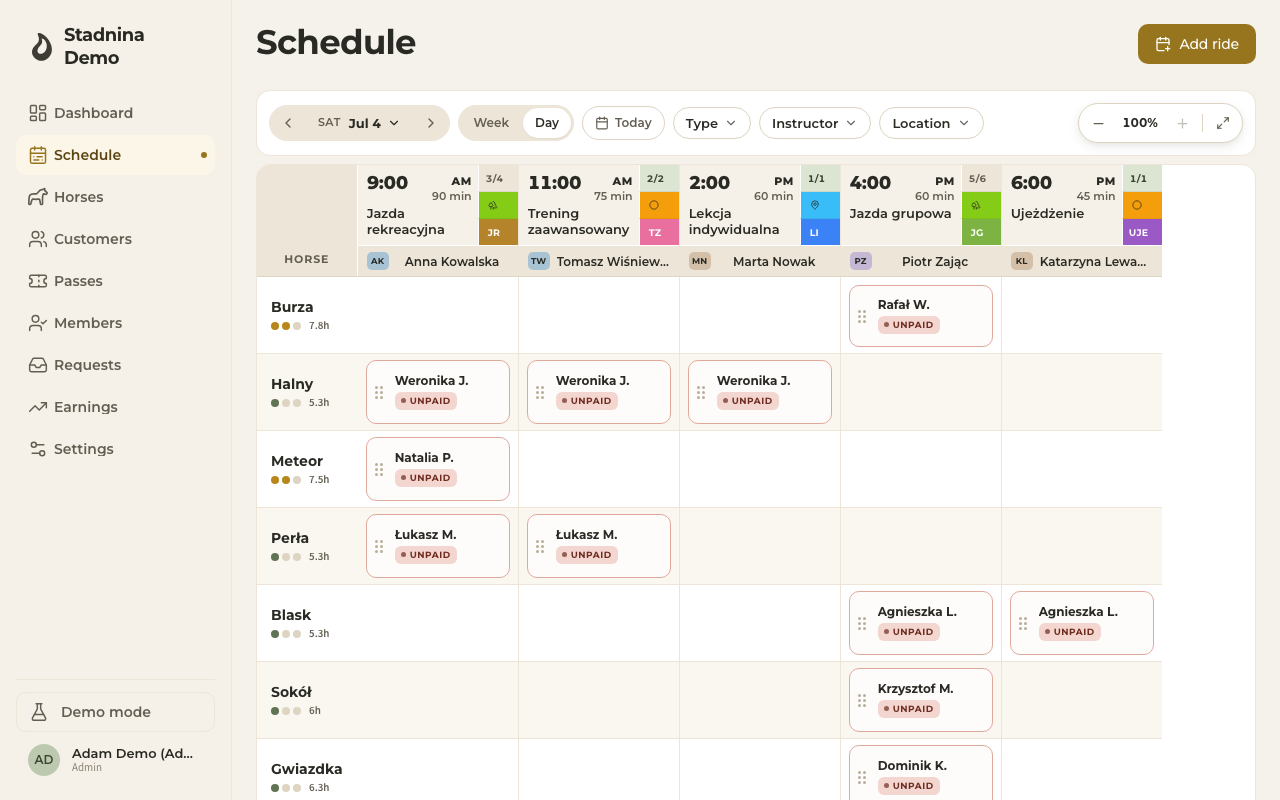
Week view and day view
- Week view shows Monday–Sunday as columns, with rides laid out by time down each day.
- Day view shows one day as a grid of horses (rows) against rides (columns) — built for lining up who rides which horse.
- Switch between them with the Week / Day toggle in the toolbar.
- Clicking a day's header (in either view) jumps straight to that day.
Moving around
- Use the ◀ and ▶ arrows to step one week (week view) or one day (day view) at a time.
- Click the date in the middle of the toolbar to open a picker — in week view it shows the current and next few weeks plus a "pick a specific date" field; in day view it opens a calendar.
- Today jumps straight back to the current week or day.
- A thin red line marks the current time down the week grid, so "now" is always easy to spot.
- In the day view, a Now strip at the top of the screen names the ride happening right now and its instructor, with a Jump to NOW button that scrolls the matrix straight to it; the current ride's column is highlighted too.
Filtering
The toolbar (or, on narrower screens, the Filters button) lets you narrow what you see:
- Instructor — show only rides taught by one or more instructors.
- Ride type — show only certain types of ride.
- Location — show only rides at certain locations.
- Mine only / Everyone — a personal-projection switch for admins and instructors, showing just your own rides.
On phones and tablets these same filters live behind a floating Filters button and a docked filter bar, with the same options as the full toolbar.
Seeing the whole week or day at once
Use the zoom control (the − / percentage / + / fit-to-width buttons in the toolbar) to shrink the grid so more of the week or day fits on screen at once — handy on a laptop with a lot of rides. You can also pinch to zoom on a trackpad or touchscreen. The fit-to-width button automatically picks the zoom level that shows every column.
Cancelled rides are hidden by default
When a ride is cancelled, it disappears from the main schedule view going forward — this keeps the grid focused on what's actually happening. To see cancelled rides again, turn on the Cancelled toggle in the toolbar (or the filters panel on mobile). This toggle only appears when there's actually a cancelled ride to show. Past cancelled rides still show as struck-through records even without the toggle.
Reading a ride block
Each ride in the week view is a block showing, at a glance:
- The start time and, if there's a capacity limit, a count of participants (for example "3/8"). A full or over-capacity ride is colour-flagged.
- The ride's name (or its ride type if it has no custom name).
- Three small coloured bands on the right for the ride type, the instructor, and the location — hover (or press and hold on touch) to expand the block and see the full names, participant count, and any notes.
- A small dot if it's your ride — red for staff teaching it, or on the rider side, green for a ride you're booked into.
- Cancelled rides are marked as such in the expanded view.
In the day view, each ride is a column header showing its time, name, capacity, and instructor; the rows below are horses, and each cell shows who's riding that horse for that ride, along with a payment status pill (paid by pass, voucher, cash, card, transfer, or still unpaid).
Good to know
- Only admins and instructors can create or edit rides from the schedule; helpers get a read-only view.
- In the day view, admins and instructors can add a horse to the day's line-up with the Add horse button, drag a rider's name onto a horse to assign them, or drag them to the trash icon that appears while dragging to remove them from the ride.
- Riders without a horse assigned yet show in a No horse row at the bottom of the day matrix.
- The week and day views remember which one you used last and reopen there next time — except helpers, who always start on the day view unless they switch to week themselves.
Related
- Creating and editing rides — adding a ride and changing its details.
- Settling a ride — taking payment and marking rides as paid.
- Booking rides — the rider-side schedule and booking flow.
- The dashboard — your stable's daily overview.