Team members
Everyone with access to your stable — admins, instructors, and helpers — with roles, invitations, and access all in one place.
ForAdminsInstructors
On this page
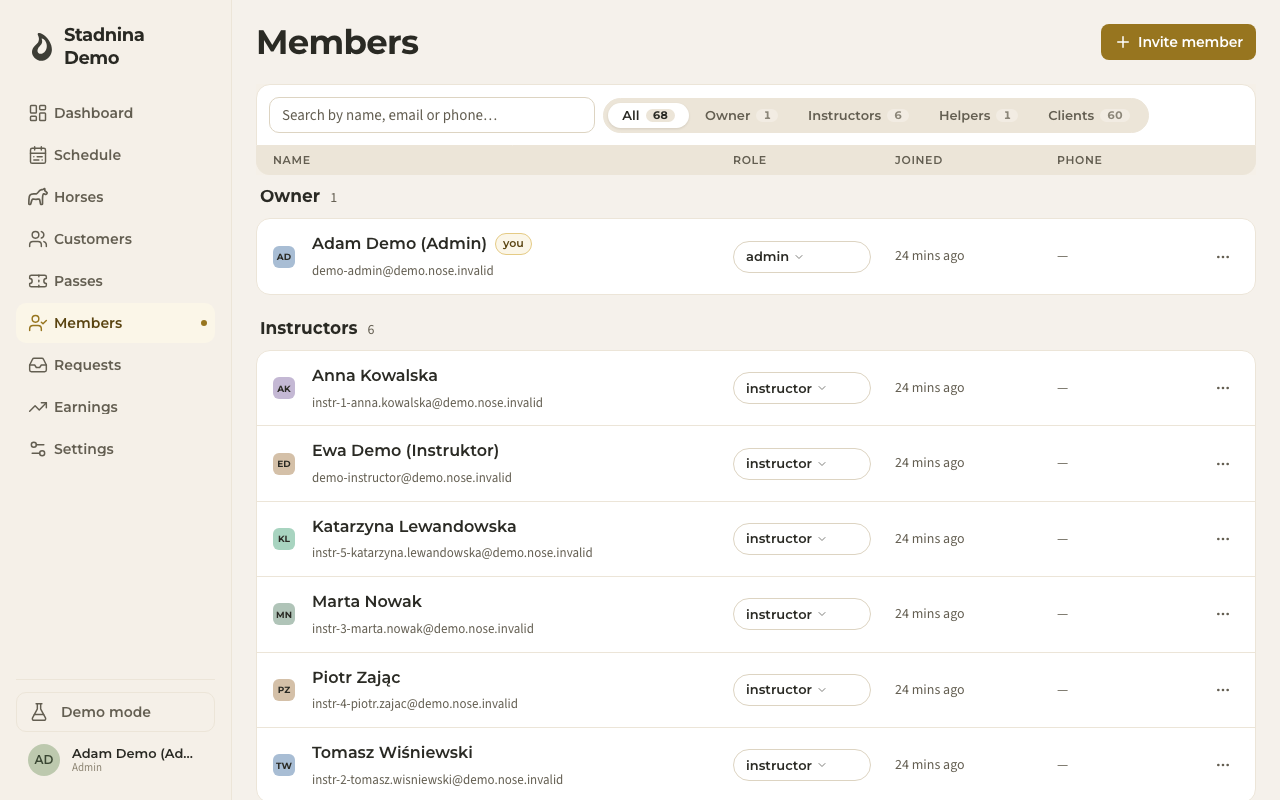
The Members page lists everyone with access to your stable — the people who run it, not the riders. Admins and instructors can open it; admins get full control, instructors get a read-only view of the roster.
Finding a member
- Search by name, email, or phone in the box at the top.
- Filter by role using the tabs next to the search box — Owner, Instructors, Helpers, Clients, and Horse owners each show a live count.
Reading the list
Members are grouped into sections by role — Owner, Instructors, Helpers, Clients, and Horse owners — with a count next to each section heading. Each row shows:
- Name and email, with a coloured avatar.
- Role — one badge per role a person holds; a person can hold more than one.
- Joined — how long ago they joined.
- Phone, if one is on file.
Deactivated members are tucked under a Disabled strip at the bottom — click it to expand and see who's been removed.
Inviting a member
- Click Invite member in the top-right corner.
- Enter their email. Admins can invite any role; instructors can only invite customer or horse owner.
- Optionally add their full name and phone — this saves them a step when they accept.
- Click Send invitation. They get an email with a one-click sign-in link that adds them to your stable.
While an invitation is waiting to be accepted, it shows in a Pending invitations strip above the list (admins only), where you can resend it or cancel it.
The roles
- Admin (Owner) — full control: settings, billing, money, and managing every other member.
- Instructor — runs the schedule, rides, passes, vouchers, and payments, and can view the member roster, but can't change stable settings or other people's roles.
- Helper — a free, limited role. Can see the schedule and the horses list, and update a horse's welfare status (for example marking it resting), but can't touch money, bookings, or settings.
- Customer and Horse owner also appear here if they've been added as members — see Customers for how riders and owners are managed day to day.
A member can hold more than one role at once — for example an instructor who is also a horse owner. Admins change a person's roles from the role badge in their row, or open their detail panel for a fuller view of their roles, status, and join date.
Deactivating a member
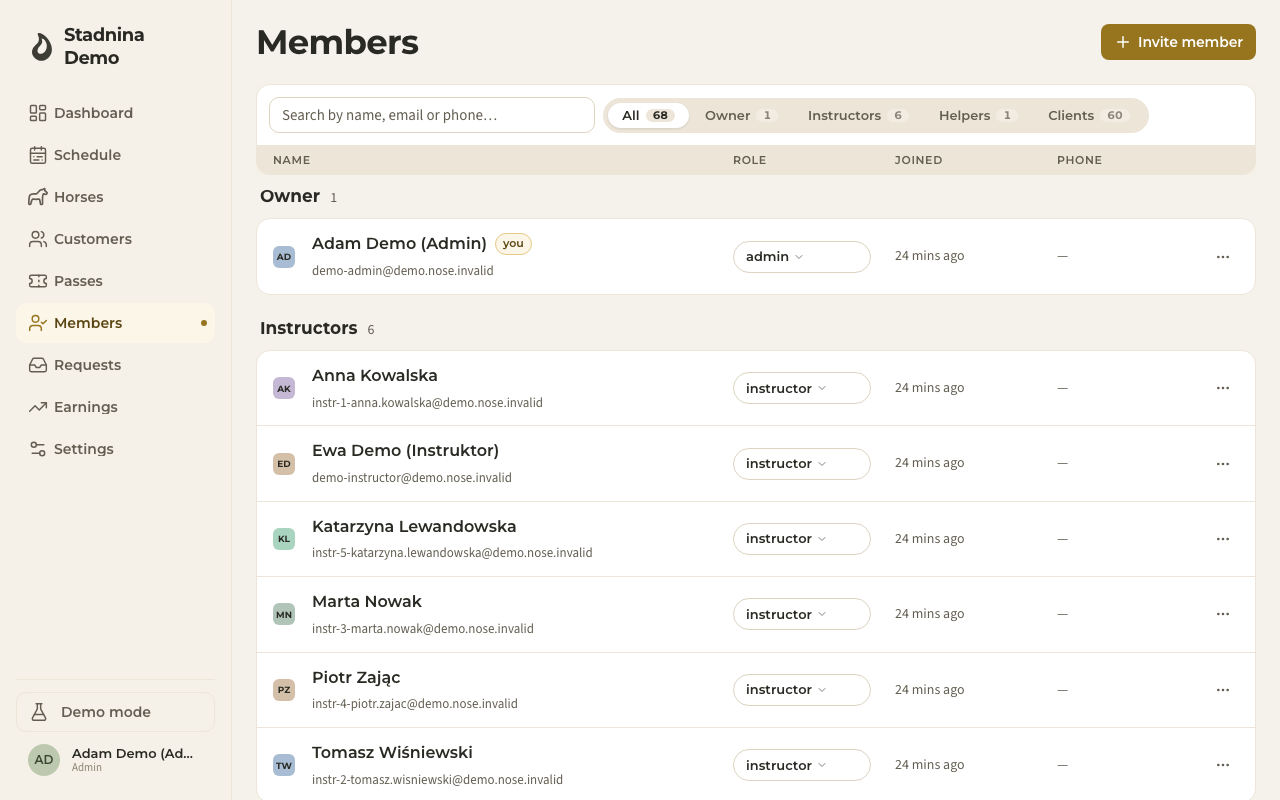
Open the ⋯ menu on a member's row and choose Deactivate. They immediately lose access to the stable; their history stays intact and you can Reactivate them later from the same menu. You can't deactivate your own account, and a stable must always keep at least one admin.
Good to know
- Changing a member's email sends a fresh sign-in link to the new address.
- Instructors can't invite an admin, another instructor, or a helper — only admins can grant staff roles.
- Deactivating someone doesn't delete anything — it just removes their access.