Your account
Your name and contact details, language, appearance, and notifications — the settings that follow you across every barn.
On this page
The Account page holds everything about you personally — your name and contact details, language, appearance, and notifications. It's the same page no matter which barn you open it from, and every barn you belong to sees the same profile. Open it from your profile picture or name in the navigation.
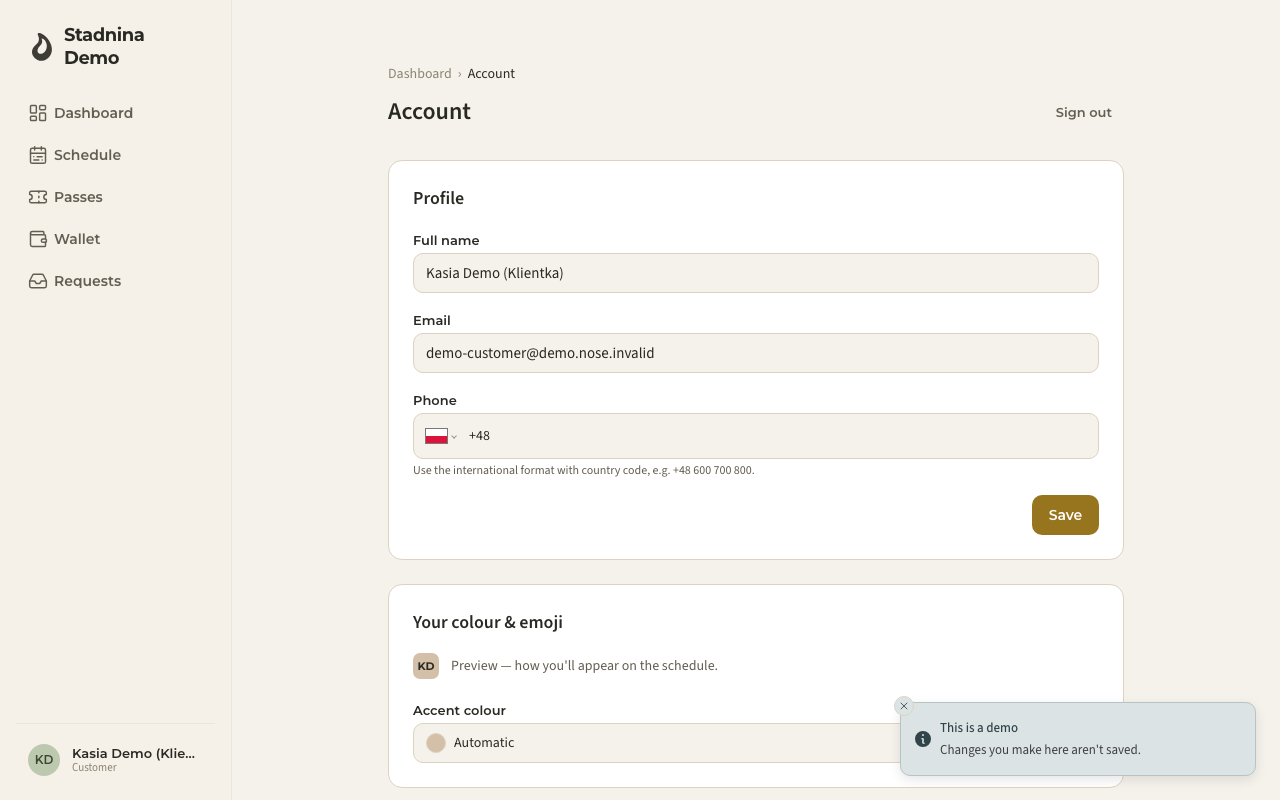
Updating your profile
- Under Profile, edit your Full name, Email, and Phone, then press Save.
- Changing your email doesn't take effect right away — you'll see a notice that a fresh sign-in link will be sent to the new address, and you need to press Save again to confirm. Your sign-in email only changes once you click that link.
- Phone numbers use the international format with a country code, for example +48 600 700 800.
Your color and emoji
Under Your color & emoji, pick an accent color and an emoji. This is how you appear on the schedule and anywhere you teach — instructors and riders alike see this chip. A profile photo, if you have one, is shown instead of the emoji.
Language
Under Language, choose the language Nose uses for you. This switches the whole app immediately.
Appearance
Under Appearance, choose Light, Dark, or System. System follows whatever your device is set to.
Notifications
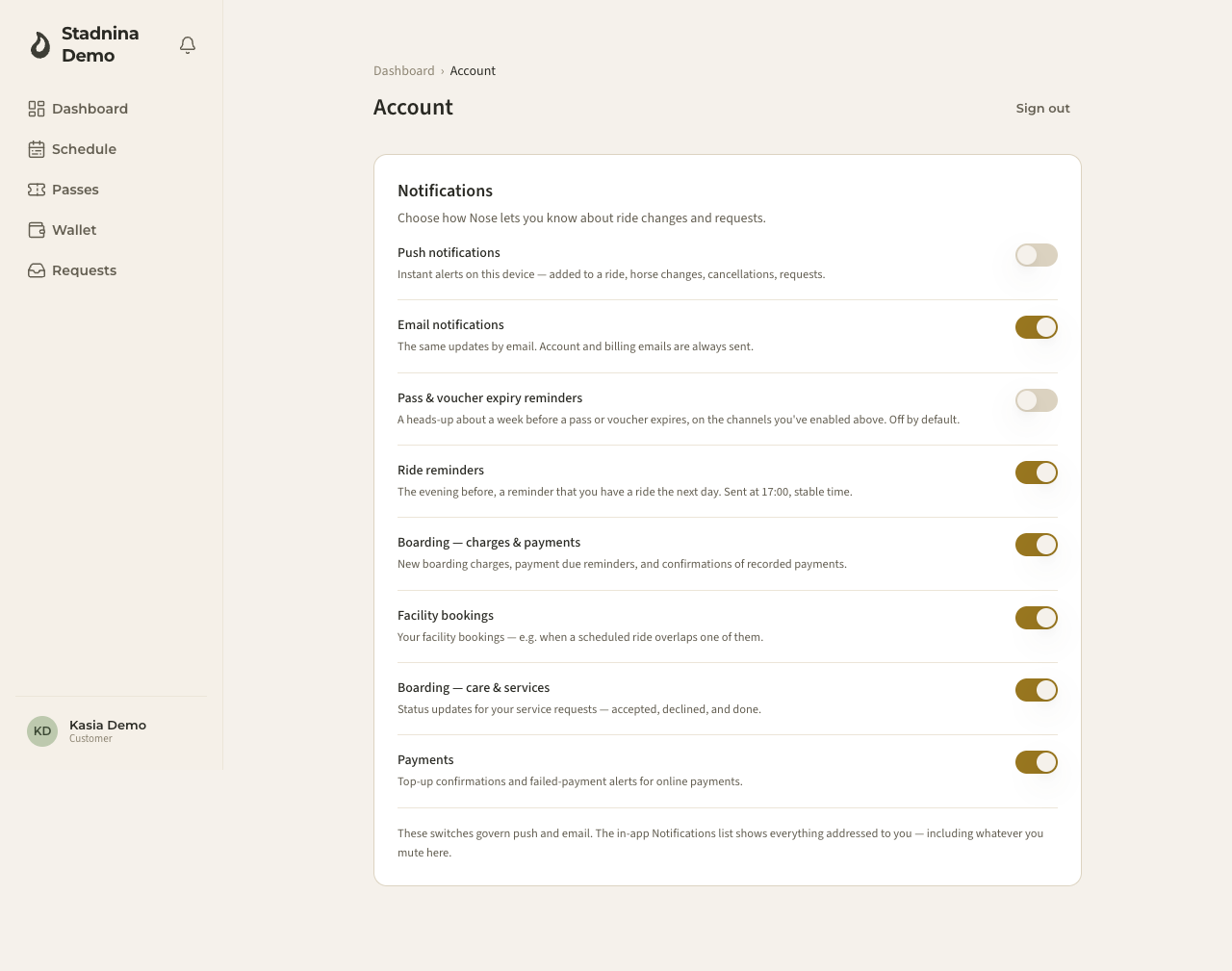
Under Notifications, choose how Nose reaches you. It has two layers: the channels at the top — push and email — and, below them, one switch per kind of message.
The two channels
- Push notifications — instant alerts on this device when you're added to a ride, a horse changes, a ride is canceled, or someone sends a request. The first time you turn this on, your browser or device will ask you to allow notifications.
- Email notifications — the same updates sent by email. Account and billing emails are always sent, regardless of this setting.
If push isn't available yet — for example your browser doesn't support it, or notifications are blocked — the page explains why in place of the switch, along with what to do about it (such as allowing notifications in your browser's site settings, or adding Nose to your Home Screen on iPhone/iPad first).
What you get told about
Under the two channels sits a switch for each kind of message. They work together: a message reaches you only if its own switch is on and the channel it would arrive on is on. So turning Push notifications or Email notifications off silences everything on that channel, no matter what the switches below say — a channel switched off always wins.
- Pass & voucher expiry reminders — a heads-up about a week before one of your passes or vouchers runs out, so you can renew in time. This is the one that starts off — turn it on if you want it.
- Ride reminders — the evening before, a reminder that you're riding tomorrow, sent at 17:00 barn time. If you have two rides tomorrow you get one reminder for each. On by default.
- Boarding — charges & payments — new boarding charges, reminders when a payment is due, and confirmations of payments your barn has recorded. On by default.
- Facility bookings — news about your facility bookings, for example when a scheduled ride overlaps one of them. On by default.
- Boarding — care & services — what happened to the service requests you've made: accepted, declined, done. On by default.
- Payments — confirmations when a payment goes through, and an alert when an online payment fails. On by default.
Everything except the expiry reminder is on from the start, so you don't have to set anything up to be kept in the loop — switch off whatever you'd rather not receive. Each switch saves the moment you flip it, and it applies to you across every barn you belong to.
These switches decide how Nose reaches you — whether your phone buzzes, whether an email is sent. They do not decide what the app remembers: the in-app notification center lists everything addressed to you, including whatever you mute here.
Why your page may show fewer switches
Three of these only appear once they'd actually mean something for you, so your page can be shorter than the list above:
- Boarding — charges & payments appears if you're the one paying for a boarding contract.
- Facility bookings appears if you pay for boarding, or once you've booked a facility at least once.
- Boarding — care & services appears if you pay for boarding, or if you're listed as an owner of a horse.
The rest — push, email, expiry reminders, ride reminders and payments — are always there. Staff see one extra setting, Team activity notifications, which controls how much of the barn's ride activity (new requests and customer cancellations) they hear about — it's shown only if you're an admin or an instructor somewhere.
Signing in
Nose doesn't use passwords. You sign in with a link or a one-time code sent to your email (or with Google, if you signed up that way). There's nothing to set here — just use the same email next time you sign in. For the full picture — signing in and the ways to join a barn — see Signing in & joining a barn.
Your barns
If you belong to more than one barn, Barn memberships lists them all, with your role and status in each, and an Open button to jump straight in.
Good to know
- These settings apply to you personally — they're the same in every barn you belong to, not per-barn.
- If you don't belong to any barn yet, the page shows a way to create your own or explains that your barn will send you an invitation.
- You can sign out from the top of this page at any time.
Related
- Export my data — download a copy of everything Nose holds about you.
- Delete my account — close your account for good.
- The notification center — the bell, and why muted messages still appear there.
- The dashboard — where you land after signing in.